Troubleshoot TLS Certificate Errors With OpenSSL and Browser Evidence
A browser message such as “certificate not trusted” is a summary of a failed check, not a root cause. The failure may be a wrong hostname, an expired leaf certificate, a missing intermediate, an unexpected certificate served by a proxy, a client clock problem, or a local trust-store issue. Start by recording the exact hostname, time, network path, client, and error code. Avoid disabling certificate verification as a workaround: that removes the check the error is warning about.
TLS certificate validation is more than reading the NotAfter field. A client builds and validates a certification path from the server certificate to a trust anchor it accepts, checks that the certificate is appropriate for the requested name and use, and evaluates validity constraints. Different clients may have different root stores and path-building behavior, so “works on my laptop” is not a complete diagnosis.
Capture the certificate the client actually receives
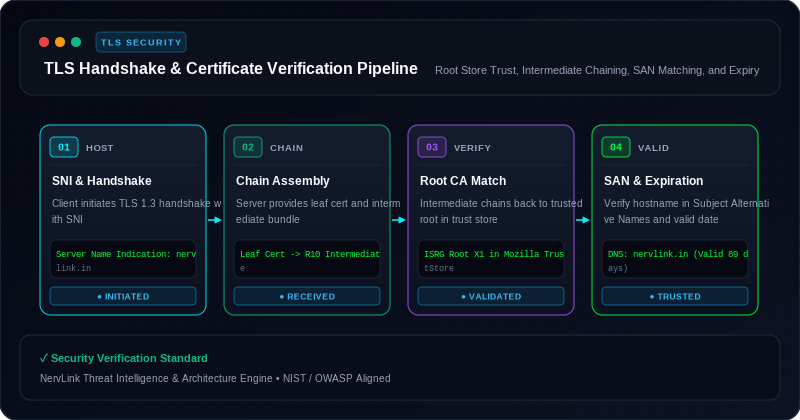
From a machine and network where the problem can be reproduced, run OpenSSL's client diagnostic with the target hostname as both the connection destination and TLS server name:
openssl s_client -connect example.com:443 -servername example.com -showcerts -verify_return_error </dev/null-servername sends Server Name Indication (SNI), which lets a server hosting multiple sites choose the intended certificate. Without it, the server may return a default certificate for another virtual host. -showcerts displays certificates sent by the peer; it does not by itself prove that the presented chain is trusted. -verify_return_error makes verification errors affect the command result. OpenSSL documentation notes that s_client is a diagnostic tool and can continue after verification problems unless this option is used.
Run the command against the hostname, not only a raw IP address. If you must connect to a specific address while preserving SNI, use a locally controlled DNS override or an appropriate client option, then confirm that the certificate is checked against the intended hostname. Never treat a successful TCP connection as proof of valid TLS.
Check hostname and SAN coverage
Modern clients validate the requested hostname against the certificate's Subject Alternative Name extension. A certificate that is valid for www.example.com may not be valid for example.com, and a wildcard has limited matching rules. The legacy Common Name is not a safe substitute for examining SAN coverage. Check the precise hostname users request, including www, API subdomains, regional names, and any alternate domains routed by a CDN.
If the wrong certificate appears, inspect DNS and routing before reissuing. The name might point to an old server, a CDN may not have the new certificate attached to the right hostname, or one load-balanced node may have stale configuration. Compare the certificate serial number and SHA-256 fingerprint from multiple networks and repeat the request several times. Avoid publishing full certificate dumps if they reveal private service naming; public certificates are generally visible in Certificate Transparency logs, but internal hostnames can still expose infrastructure details.
Distinguish expiry from chain problems
Read the leaf and intermediate validity windows in UTC and compare them with a trusted system clock. A device set to the wrong date can report a false expiry or “not yet valid” error. If the leaf is actually expired, determine which automation failed: certificate issuance, renewal scheduling, deployment, or reload. Fix the renewal pipeline and alert on remaining validity days rather than only retrying issuance after users report an outage.
A chain issue commonly occurs when the server sends only the leaf certificate and omits an intermediate certificate required by clients. The trust anchor is normally already in the client's local trust store and generally should not be sent as if it were an intermediate. Inspect the ordered certificates presented by the server and compare them with the issuing CA's installation instructions. Let's Encrypt explains that a served certificate can be delivered with one or more intermediates and that more than one valid chain may exist.
Do not copy an old intermediate chain from a different certificate or assume every client constructs alternate paths identically. Install the current chain recommended by the CA, check whether the server reload succeeded on every node, and test with at least one current browser and one command-line client. A clean result in one OpenSSL version may not match older trust stores, so use the actual supported client matrix when compatibility matters.
Check intermediaries and deployment layers
When a certificate differs by network, look for TLS inspection, corporate proxies, VPN gateways, captive portals, CDN edges, and load balancers. A managed inspection proxy may intentionally issue a locally trusted replacement certificate. That behavior should be documented and controlled by the organization; do not train users to accept arbitrary certificate warnings. Check the issuer and fingerprint, then reproduce from a network that bypasses the suspected intermediary if authorized.
For a cluster, inspect every serving endpoint. A DNS record can return multiple addresses while only some nodes have the current keypair or chain. Verify IPv4 and IPv6 paths separately. Check that the private key corresponds to the installed public certificate, that the service is listening on the expected SNI configuration, and that the old certificate is not still attached to a fallback virtual host.
A safe troubleshooting sequence
- Capture the browser's exact error, hostname, time, and network conditions.
- Check the device clock and reproduce with SNI-aware OpenSSL verification.
- Confirm SAN coverage for the exact requested hostname.
- Check certificate validity, chain order, and issuing CA installation guidance.
- Compare fingerprints across addresses, IPv4/IPv6, networks, CDN locations, and load-balanced nodes.
- Repair renewal or deployment automation, reload the service, then test from representative clients.
- Add monitoring for expiry, failed renewal, and inconsistent certificates across endpoints.
For example, a hostname mismatch points toward DNS, SNI, or virtual-host configuration. An expired leaf points toward renewal and deployment operations. A path-building failure may indicate missing or incorrect intermediates or an outdated client trust store. A certificate that changes only on a corporate network suggests an intermediary. Treat these as diagnostic hypotheses and confirm them with the certificate and routing evidence.
Operational controls that prevent repeats
Automate renewal with an alert when the deployment step fails, not just when issuance fails. Monitor the certificate served externally because a successful ACME renewal does not prove that the production endpoint loaded the new material. Use separate alerts for impending expiry and for endpoint inconsistency. Record owner, renewal method, deploy target, and rollback steps in service documentation. Test renewal in staging, but also monitor production after reload.
Keep private keys access-controlled and out of source control, artifacts, and support tickets. A certificate is public identity data; the corresponding private key is not. If a private key may have been exposed, follow the CA's replacement and revocation guidance and investigate the exposure rather than merely renewing the certificate.
RFC 5280 describes Internet X.509 certificate profiles and certification-path validation. OpenSSL's s_client documentation lists the SNI, chain-display, and verification options used here. CA documentation remains authoritative for the exact chain a service should install.
References
- RFC 5280: Internet X.509 PKI Certificate and CRL Profile
- OpenSSL 3.6 `s_client` documentation
- Let's Encrypt certificate chains
Editorial status: Owner authorized publication without an individual reviewer. Commands should be run only for systems you own or administer.